Introduction
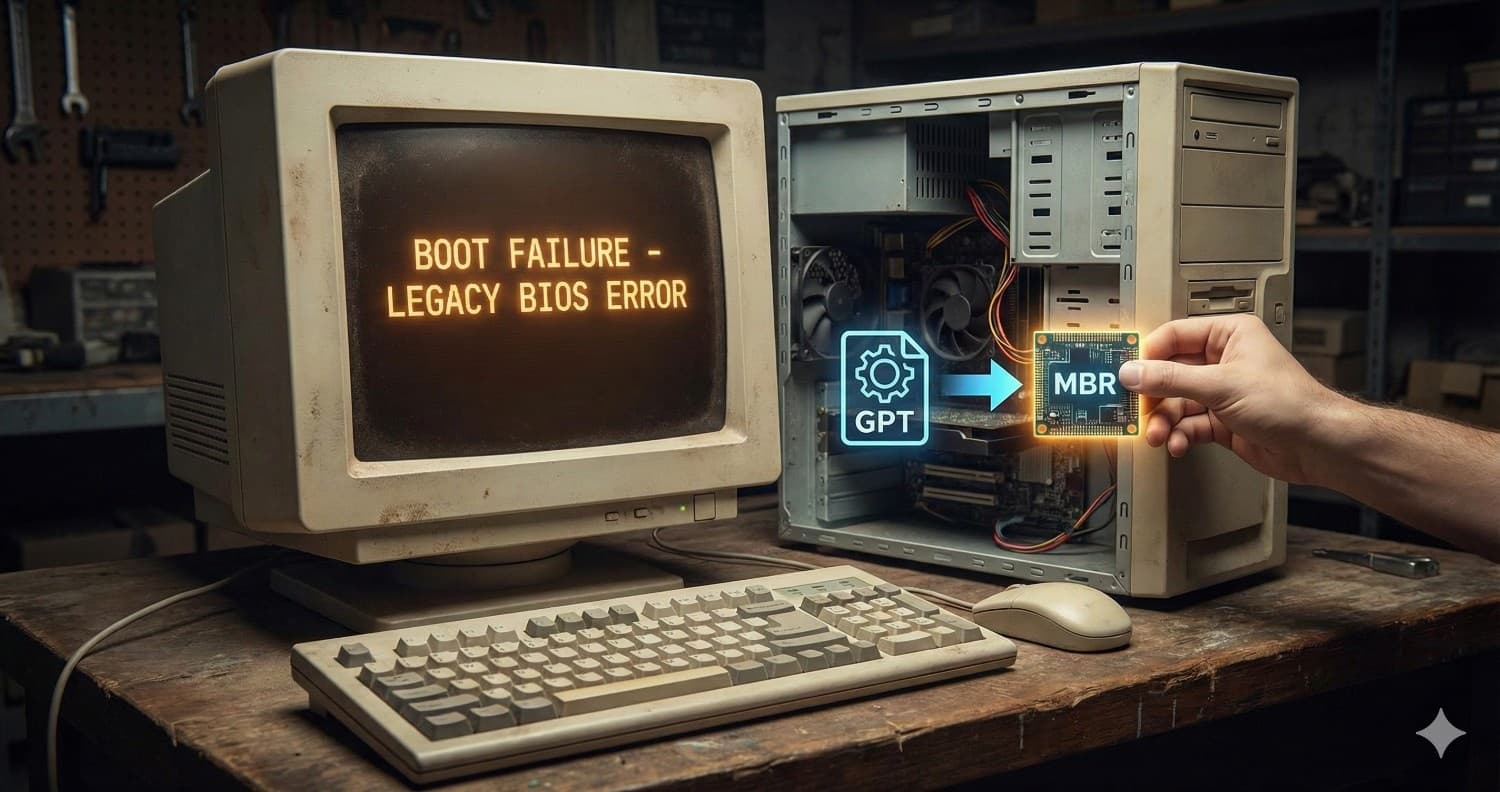
If you're running Ubuntu Server on older hardware and experiencing a frustrating "Boot Failure" message despite having a working installation, this guide is for you. I recently encountered this exact issue on a Pentium Dual-Core E5700 system running Ubuntu Server 24.04, and after extensive troubleshooting, discovered the root cause: GPT partition tables are incompatible with many Legacy BIOS systems from the 2009-2010 era.
This article documents the complete troubleshooting journey and provides a step-by-step solution to convert your disk from GPT to MBR format, enabling automatic boot on legacy hardware.
The Problem
System Configuration
Hardware: Pentium Dual-Core E5700 (Intel G41/ICH7 chipset, circa 2009-2010)
OS: Ubuntu Server 24.04 (LVM/ext4)
Boot Mode: Legacy BIOS (Non-UEFI)
Storage: Samsung 232GB (OS drive - /dev/sda), WDC 160GB (Storage - /dev/sdb)
Symptoms
System displays "Boot Failure" message on power-on
Manual boot via F10 BIOS boot menu works perfectly
Ubuntu runs flawlessly once booted manually
BIOS correctly shows the Samsung drive as first boot device

Initial Troubleshooting Attempted (All Unsuccessful)
CMOS Battery: Replaced with new CR2032 - settings now persistent
BIOS Configuration: Disabled PXE boot, set Hard Disk as #1 priority
Physical Ports: Moved Samsung OS drive to SATA Port 0
GRUB Repair: Ran grub-install /dev/sda and update-grub - both reported success
Despite all these steps, the automatic boot still failed.
Root Cause Analysis
Discovering the Real Issue
The first clue came from checking the partition table type:
sudo fdisk -l /dev/sda
Output:
Disk /dev/sda: 232.89 GiB, 250059350016 bytes, 488397168 sectors
Disk model: SAMSUNG HD250HJ
Units: sectors of 1 * 512 = 512 bytes
Sector size (logical/physical): 512 bytes / 512 bytes
I/O size (minimum/optimal): 512 bytes / 512 bytes
Disklabel type: gpt
Disk identifier: DC0B9FCE-C277-414C-8943-AB3356E74D95

Device       Start       End   Sectors   Size Type
/dev/sda1     2048      4095      2048     1M BIOS boot
/dev/sda2     4096   4198399   4194304     2G Linux filesystem
/dev/sda3  4198400 488394751 484196352 230.9G Linux filesystem
Key finding: Disklabel type: gpt
The disk was using a GPT (GUID Partition Table) instead of MBR (Master Boot Record).
Why GPT Fails on Older BIOS
Further investigation with gdisk confirmed the issue:
sudo gdisk /dev/sda
Output:
GPT fdisk (gdisk) version 1.0.10

Partition table scan:
  MBR: protective
  BSD: not present
  APM: not present
  GPT: present

Found valid GPT with protective MBR; using GPT.
The smoking gun: MBR: protective
GPT disks include a "protective MBR" that marks the entire disk as type 0xEE. This is designed to prevent older tools from accidentally modifying GPT disks. However, many vintage BIOSes from the Pentium Dual-Core era see this protective MBR, find no bootable partition, and refuse to hand off execution to the bootloader—even though GRUB is correctly installed.
Why the Boot Flag Didn't Help
I initially tried setting the GPT "LegacyBIOSBootable" attribute:
sudo fdisk /dev/sda
This set the GPT attribute bit 2 on the BIOS boot partition. However, this didn't work because the BIOS never examines GPT attributes—it only sees the protective MBR and gives up before ever looking at the GPT structure.
The Solution: Convert GPT to MBR
Since the disk had only 3 partitions (well under MBR's 4-primary limit) and was 232GB (well under MBR's 2TB limit), converting to MBR was the cleanest solution.
Prerequisites
Step-by-Step Conversion Process
Step 1: Backup Current GPT Partition Table
Before making any changes, create a backup of your current GPT layout:
sudo sgdisk --backup=/root/sda-gpt-backup.bin /dev/sda
Expected output:
The operation has completed successfully.
What this does:
sgdisk is a GPT partition table utility
--backup creates a binary copy of the entire GPT structure
The backup file is saved to /root/sda-gpt-backup.bin
Why this matters: If anything goes wrong, you can restore with:
sudo sgdisk --load-backup=/root/sda-gpt-backup.bin /dev/sda
Step 2: Open gdisk for Conversion
Launch the gdisk utility:
sudo gdisk /dev/sda
Expected output:
GPT fdisk (gdisk) version 1.0.10

Partition table scan:
  MBR: protective
  BSD: not present
  APM: not present
  GPT: present

Found valid GPT with protective MBR; using GPT.

Command (? for help):
This confirms:
At the Command (? for help): prompt, type:
r
Expected output:
Recovery/transformation command (? for help):
This menu contains tools for converting between partition table formats.
Step 4: Start GPT to MBR Conversion
At the Recovery/transformation command (? for help): prompt, type:
g
Expected output:
MBR command (? for help):
You're now in the MBR conversion submenu.
Step 5: View Proposed MBR Layout
Check what gdisk proposes for the conversion:
p
Expected output:
** NOTE: Partition numbers do NOT indicate final primary/logical status,
** unlike in most MBR partitioning tools!

** Extended partitions are not displayed, but will be generated as required.

Disk size is 488397168 sectors (232.9 GiB)
MBR disk identifier: 0x00000000
MBR partitions:

                                                   Can Be   Can Be
Number  Boot  Start Sector   End Sector   Status   Logical  Primary   Code
   1                  2048         4095   primary     Y        Y      0xEF
   2                  4096      4198399   primary              Y      0x83
   3               4198400    488394751   primary              Y      0x83
Analysis:
Partition 1 (1M BIOS boot) — Type 0xEF — Needs to be omitted
Partition 2 (/boot, 2G) — Type 0x83 (Linux) — Correct
Partition 3 (Main/LVM, 230.9G) — Type 0x83 (Linux) — Correct
Step 6: Omit the BIOS Boot Partition
The 1M BIOS boot partition (partition 1) is only needed for GPT+BIOS setups. With MBR, GRUB installs directly into the space between the MBR and the first partition.
Type:
o
When prompted for partition number:
Partition to omit: 1
Step 7: Verify Partition 1 is Omitted
Check the updated layout:
p
Expected output:
Disk size is 488397168 sectors (232.9 GiB)
MBR disk identifier: 0x00000000
MBR partitions:

                                                   Can Be   Can Be
Number  Boot  Start Sector   End Sector   Status   Logical  Primary   Code
   1                  2048         4095   omitted     Y        Y      0xEF
   2                  4096      4198399   primary     Y        Y      0x83
   3               4198400    488394751   primary              Y      0x83
Partition 1 now shows "omitted" status.
Step 8: Set Boot Flag on /boot Partition
Type:
a
When prompted:
Toggle active flag for partition: 2
Step 9: Verify Boot Flag is Set
Check the layout again:
p
Expected output:
Disk size is 488397168 sectors (232.9 GiB)
MBR disk identifier: 0x00000000
MBR partitions:

                                                   Can Be   Can Be
Number  Boot  Start Sector   End Sector   Status   Logical  Primary   Code
   1                  2048         4095   omitted     Y        Y      0xEF
   2      *           4096      4198399   primary     Y        Y      0x83
   3               4198400    488394751   primary              Y      0x83
The * in the Boot column confirms the boot flag is set on partition 2.
Step 10: Write Changes to Disk
⚠️ This is the critical step that modifies your disk.
Type:
w
Expected output:
Converted 2 partitions. Finalize and exit? (Y/N):
Type:
Y
Expected output:
Warning: The kernel is still using the old partition table.
The new table will be used at the next reboot or after you
run partprobe(8) or kpartx(8)
GPT data structures destroyed! You may now partition the disk using fdisk or
other utilities.
The conversion is complete.
Step 11: Update Kernel Partition Table
Inform the kernel about the new partition layout:
sudo partprobe /dev/sda
No output means success.
Step 12: Verify the New MBR Partition Table
Confirm the conversion:
sudo fdisk -l /dev/sda
Expected output:
Disk /dev/sda: 232.89 GiB, 250059350016 bytes, 488397168 sectors
Disk model: SAMSUNG HD250HJ
Units: sectors of 1 * 512 = 512 bytes
Sector size (logical/physical): 512 bytes / 512 bytes
I/O size (minimum/optimal): 512 bytes / 512 bytes
Disklabel type: dos
Disk identifier: 0x00000000

Device     Boot   Start       End   Sectors   Size Id Type
/dev/sda2  *       4096   4198399   4194304     2G 83 Linux
/dev/sda3       4198400 488394751 484196352 230.9G 83 Linux
Key confirmations:
Disklabel type: dos — MBR format ✓
Boot flag (*) on /dev/sda2 ✓
Two partitions (sda2 and sda3) ✓
Partition 1 omitted (not listed) ✓
Step 13: Reinstall GRUB for MBR
Install GRUB into the MBR:
sudo grub-install --target=i386-pc /dev/sda
Expected output:
Installing for i386-pc platform.
Installation finished. No error reported.
What this does:
Installs GRUB bootloader into the MBR (first 512 bytes)
Installs GRUB's core image in the gap between MBR and first partition
--target=i386-pc specifies Legacy BIOS mode (not UEFI)
Step 14: Update GRUB Configuration
Regenerate the GRUB configuration:
sudo update-grub
Expected output:
Sourcing file `/etc/default/grub'
Generating grub configuration file ...
Found linux image: /boot/vmlinuz-6.8.0-90-generic
Found initrd image: /boot/initrd.img-6.8.0-90-generic
Warning: os-prober will not be executed to detect other bootable partitions.
Systems on them will not be added to the GRUB boot configuration.
Check GRUB_DISABLE_OS_PROBER documentation entry.
Adding boot menu entry for UEFI Firmware Settings ...
done
The warnings are harmless:
Step 15: Full Power Cycle Test
Perform a complete power off (not reboot):
sudo poweroff
Important: Old BIOSes can cache boot information, so a full power cycle is necessary.
After the system powers off:
Wait 5-10 seconds
Power on the machine
Do NOT press F10 — let it boot automatically
Result: The system should now boot to Ubuntu automatically without manual intervention.
Summary of Commands
For quick reference, here's the complete sequence of commands:
sudo sgdisk --backup=/root/sda-gpt-backup.bin /dev/sda
sudo gdisk /dev/sda
sudo partprobe /dev/sda
sudo fdisk -l /dev/sda
sudo grub-install --target=i386-pc /dev/sda
sudo update-grub
sudo poweroff
Key Takeaways
GPT and Legacy BIOS don't mix well on older hardware (pre-2011). The protective MBR confuses vintage BIOSes.
Manual boot working but automatic boot failing is a classic symptom of partition table incompatibility.
MBR is still viable for disks under 2TB with 4 or fewer partitions.
Converting GPT to MBR preserves data — only the partition table metadata changes, not your files.
Always backup the partition table before making changes using sgdisk --backup.
The BIOS boot partition is GPT-specific and should be omitted during MBR conversion.
Set the boot flag on your /boot partition for Legacy BIOS compatibility.
Full power cycle (not reboot) is essential after partition table changes on older systems.
Restoration (If Needed)
If something goes wrong and you need to restore the original GPT:
sudo sgdisk --load-backup=/root/sda-gpt-backup.bin /dev/sda
sudo partprobe /dev/sda
sudo grub-install --target=i386-pc /dev/sda
sudo update-grub
Conclusion
While modern hardware handles GPT seamlessly, legacy systems from the late 2000s often require MBR for reliable automatic booting. This conversion process is safe, preserves your data, and finally enables your older server to boot without manual intervention.
If you're maintaining legacy hardware for home labs, development environments, or specialized applications, understanding these partition table fundamentals can save hours of frustrating troubleshooting.